
Introduction
What was once an impossible fantasy - a sketch in someone's book, a render of an ambitious concept - is now a reality. These are just some thoughts that come to mind holding the Galaxy S8+, the big and bold next step Samsung took.
And yet, such is the progress the smartphone industry has been making that the Galaxy S8+, with its exquisite, elongated shape and borderless display, was the logical way forward rather than a result of a vain experiment.

Bigger is better, the old mantra goes, but is it really that simple? How deep does the average pocket go and how far does the average thumb stretch? And, most importantly, how tall is tall enough? Samsung were after more screen in less body and that is far from the only argument in favor of the new 18.5:9 aspect ratio, nor is Samsung alone in its endeavor.
The LG G6 is already a reality, with its 18:9 display and Google itself is on board as well, more than encouraging the widescreen experiments. Yet, it will be some time before media content catches on so the S8 pair do come with some early-adopter hurdles. But, if the widescreen mobile experience is truly the way of the future, there is hardly a better way to start the journey than the 6.2" Galaxy S8+.
Samsung Galaxy S8+ key features
- Body: Polished aluminum frame, Gorilla Glass 5 front and back; IP68 certified for water and dust resistance. Arctic Silver, Orchid Grey, Black Sky, Maple Gold, and Coral Blue color schemes.
- Display: 6.2" Super AMOLED, 2,960x1440px resolution, 18.5:9 (2.06:1) aspect ratio, 529ppi; HDR 10 compliant (no Dolby Vision).
- Rear camera:12MP, f/1.7 aperture, dual pixel phase detection autofocus, OIS; face/smile detection, Multi-Frame Image Processing; 2160p/30fps video recording.
- Front camera: 8MP, f/1.7 aperture, autofocus; 1440p/30fps video recording.
- OS/Software: Android 7.0 Nougat; Samsung Grace UX; Bixby virtual assistant; Smart Connect, Smart Connect Home
- Chipsets:Qualcomm Snapdragon 835: octa-core CPU (4x2.35GHz Kryo 280 & 4x1.9GHz Kryo 280), Adreno 540 GPU. Exynos 8895: octa-core CPU (4x2nd-gen Mongoose 2.3GHz + 4xCortex-A53 1.7GHz), Mali-G71 GPU.
- Memory: 4GB of RAM (6GB option for some markets); 64GB storage (128GB option for some markets); microSD slot for cards up to 256GB, UFS cards support.
- Battery: 3,500mAh Li-Po (sealed); Adaptive Fast Charging (same as S7); QuickCharge 2.0 support; WPC (Qi)&PMA wireless charging.
- Connectivity: Single-SIM, Dual-SIM available in certain markets; LTE-A, 4-Band/5-Band carrier aggregation, Cat.16/13 (1Gbps/150Mbps); USB Type-C (v3.1); Wi-Fi a/b/g/n/ac MU-MIMO; GPS, Beidou, Galileo; NFC; Bluetooth 5.0.
- Misc: Fingerprint reader; iris recognition, face recognition; single speaker on the bottom; 3.5mm jack; bundled AKG headphones.
Main shortcomings:
- No stereo speakers
- Inconveniently placed fingerprint reader
- Screen aspect ratio not best suited for video content
The good thing is, the extraordinary display is only one piece of the great package that is the Galaxy S8+ and it has plenty of other things going for it. One could expect nothing less given the pressure that the new flagship is under, following the unfortunate demise of the Note7. Samsung hasn't gone a full year without a new flagship since 2011 and, given the growth it's seen since, this is arguably its most important launch yet.
Judging by the early response, the company got the presentation right, but the S8 really needs to keep going strong beyond the hype stage. It just has to deliver performance that matches the wow factor, a user experience as compelling as the design. Guess what, we are here to find out if it does.
Samsung Galaxy S8+ in official photos


Follow along the next few pages as we dive head-first and explore Samsung's new beast of a flagship.
Unboxing
The Galaxy S8+ comes in a fairly standard black box with the name of the device on it. No fancy opening mechanism or special materials in sight and frankly, we would take exciting contents over a flashy presentation any day of the week. Plus, you don't really want to, or need to draw any attention away from the Galaxy S8+ that greets you as soon as you open the box. Even with a sticker on top for protection, the impressive curves and screen proportions still become instantly apparent.
Package contents


The S8+ comes with a USB 3.1 Type-C to Type A cable for data transfer and charging. Type-C is finally settling in Samsung's ranks, but that could require some transition. To facilitate it, there are a pair of rather odd adapters included in the box.
The bundled wall charger is the all too familiar affair. It's one of Samsung's Adaptive Fast chargers, rated at 5V at 2A or 9V at 1.67A. Interestingly enough, the same charger can also power the DeX dock. It, however, is rated for 12V of input and refused to work with a simple 5V/2A charger. There is also a SIM ejector thrown in the mix.

Samsung also decided to sweeten the deal by including a pair of wired earbuds in the box. These come courtesy of AKG and have a retail value of $99 on their own. But pricing is not really indicative of quality and we are happy to report the headphones sound really good - we got deep bass and nice and clear mids.
There are actually two drivers per bud - one 8mm and one 11mm. You also have a microphone, so you can make and receive calls.
Samsung Galaxy S8+ 360-degree spin
Once you manage to take your eyes off the seemingly endless 6.2" screen and take a look around the S8+, it becomes apparent that there is a lot more to its design. The symmetry is almost perfect all-around. The back curvature mirrors the front, to boost both the looks and handling.
The camera is almost perfectly flat on the S8+, eliminating any noticeable hump on that end as well. Good grip and comfort also benefit from the curve.
Size and proportions are one of the hot topics surrounding the Galaxy S8 and especially the S8+. 6.2 inches really sound like a lot. This is quite understandable, since 16:9 screens are all we were getting these past few years so we often forget to factor in the aspect ratio difference. Yet the new approach to bigger screens is to make them taller, 18.5:9 in this particular case. This all adds up to a phablet with an overall footprint of 159.5 x 73.4 x 8.1mm - quite close to the Galaxy S7 edge, with its 150.9 x 72.6 x 7.7mm. Sure, there is a small bump in both thickness and width, but nothing to really stand in the way of comfortable handling.
Samsung Galaxy S8 and S8+ • Galaxy S7 and S8+


So with the difference in proportions, diagonals are not directly comparable across the S7 and S8 generations. You'd be much better off thinking of the Galaxy S8+ as the spiritual successor to the S7 edge with some extra screen top and bottom than a dramatically bigger phone.
Galaxy S8+ next to Galaxy S7 edge and LG G6


Still, there is nearly a centimeter of added height, which combined with the slippery glass finish means you need to be extra careful to not let the handset slip in certain scenarios. The extra height means you will need to readjust your grip to a less secure one if you want to be able to reach all the way to top and bottom at the same time.
Circling back to the Galaxy S8+ design - its build and finish are nothing short of excellent. There is a polished aluminum frame all around and Gorilla Glass 5 on both the back and front. The IP68 water and dust resistance was achieved without any flaps to ruin the great impression the exquisite craftsmanship makes.

In terms of colors, you get a choice of Arctic Silver, Orchid Grey, Black Sky, Maple Gold, and Coral Blue - all pretty eye-catching. We also appreciate the subtle glitter effects, courtesy of the glass finish, even if it's nothing really new. The front of the S8+ is all black, regardless of the paint job chosen. This was definitely a good call on Samsung's end, considering there are a whopping six "cutouts" for various sensors on the top bezel of the device. French cheese would probably be the first thing to come to mind with any other choice of color .
Hardware overview
Speaking of the top bezel, the six holes (not counting the earpiece) are a veritable "who's who" of cutting edge mobile tech. On the far left, there is a dedicated RGB status LED, so even if you don't like Samsung's AOD solution, you can still know when your attention is required. Right next to that is the illuminator for the Iris scanner. The scanner itself is on the far right of the bezel. This dual setup is necessary, since this biometric sensor operates with IR light - invisible to the naked eye, but necessary for capturing the retina pattern. The Galaxy Note7 used the exact same arrangement.
Busy top bezel


Going back to the left side of the earpiece, we also find a traditional proximity sensor and an ambient light detector. Last is the 8MP selfie camera, which also powers the new facial recognition system.
The bottom bezel (or the tiny bit that's left of it) holds absolutely nothing. We presume Samsung still needed to reserve some space underneath for some components. Plus, the home button and navigation keys are low enough as it is. Home button? Yes, definitely!
In the absence of a traditional physical key, Samsung has turned to on-screen navigation controls for the S8 and S8+. The nice side effect is that you can swap the back and menu keys the way you like it.
There is almost no bottom bezel left


As for the home button, it now has a special status and is fixed in the middle. Samsung didn't want to skip on tactile feedback entirely. There are some dedicated pressure sensors underneath it, so it continues to function even when the screen is off. Plus, a taptic engine gives off a nice little vibration on every press. It is pretty convincing and doesn't feel like the front of the phone is giving in - somewhat of a problem on recent Apple devices. We did find the force sensitivity a little low out of the box, but Samsung lets you adjust that.
The only real problem we have with the new navigation scheme, combined with the tall body of the S8+ is that it leaves the main controls sitting pretty low, relative to the whole device. Chances are you will naturally tend towards holding the S8+ higher up to take advantage of the extra vertical screen real estate. That, however, means your thumb needs to do plenty of stretching to reach the bottom left or right corners of the screen (depending on which hand you use).
A lonely power button on the right-hand side


The sides of the Galaxy S8+ actually hold little surprises. A solitary power button sits pretty high up on the right.
The top and bottom parts of the Galaxy S8+ frame are noticeably wider than its sides. This works well for housing the SIM card slot and a second noise-canceling mic on top. On the bottom, we find a USB Type-C port, the good old 3.5mm audio jack (phew, it's still here) and a single speaker.
It is disappointing that the S8+ has no stereo speakers - maybe understandable, given all the size constraints, but a Huawei-style hybrid setup, using the earpiece might have still been possible.
Top and bottom


Finally, we have the left hand side, which houses the standard volume rocker and the all new Bixby button. In case you haven't heard already, it fires up Samsung's virtual assistant. Having a dedicated button is easily justifiable, since Bixby is intended as a constant helper all throughout the Galaxy S8+ user experience. Samsung's goal was to make it truly versatile, so it can take an active part in your interactions with the phone. It's an ambitious project for sure and we'll examine it in more detail in the software section.
The new Bixby button is right underneath the volume rocker


By the way the modding community already has plans for the new hardware control. Samsung won't be offering any custom mapping functions for the button, but there are third-party apps that turn it into a fully customizable key akin to BlackBerry's convenience key of old. At least for the time being, that is. Samsung is reportedly implementing extra software measures to hide the Bixby button from modders. So, it's hard to say how things will play out in the long run.

Before we complete the hardware tour there's something else about the back of the S8+ we have to mention. We already covered the fine selection of colors, nice and convenient curvature and the sturdy Gorilla Glass 5 finish. We won't really fixate too much on the single 12MP Dual Pixel camera, as it's mostly identical to the one found on the S7. We will, however, point out that Samsung's positioning of the fingerprint reader is less than ideal.
Beautifully arched back side


It is way too high up, off-center and right next to the camera lens. Guess what you'll constantly be tapping by accident while searching for the sensor. Samsung itself seems aware that this is an issue and has even added a notification in the camera UI, reminding you to keep the lens clean and smudge-free from time to time.
The Galaxy S8+ in the hand


Still, if you opt for one of the S8+'s biometric unlock methods, you won't have to deal with the inconvenience too frequently. We guess that offers at least a little bit of consolation. Another little detail worth mentioning is that the single LED flash and heart-rate monitor no longer have dedicated cut-outs. Instead, they are positioned directly underneath the Gorilla Glass surface. Neat!
Display
When it comes to AMOLED technology, Samsung has pretty much been the industry leader for quite a few years now. Top notch displays have been gracing the company's flagships for generations and the new Galaxy S8 pair does live up to that reputation.
The industry is shifting to new ultra-wide screens but the transition will inevitably take some time.
Apps and games are one thing, Android can scale those so no big deal. Media content, on the other hand, will either take years to adapt to the new format or won't do it at all. Either way prepare to see a lot of black bars around your videos or photos or live with some stretching or cropping.

It's not all bad - the new format is better for watching movies and their trailers as they come in the even wider 21:9 format. Netflix is making a push in that direction as well. And even viewing older sources, living with letterboxing isn't really all that bad, since, at the end of the day you are still getting more usable space than on the Galaxy S7 edge. The only real difference being that bezels can't magically turn into extra screen real estate when needed, while the S8 and S8+ effectively offer an alternative that can.
Speaking of streaming services and new content standards, HDR is quickly becoming the buzzword. We get it, if we are really going through with this wide aspect revolution, then we might as well get all the extra colors and contrast along with that. The Galaxy S8 and S8+ support the HDR10 standard, but not Dolby Vision, which the LG G6 has.
However, the HDR situation is currently a bit more complicated than that. Samsung's new Infinity Display panel holds the UHD Alliance's "Mobile HDR Premium" certification - it is the first smartphone display to get it. It got there through a combination of 113% coverage of DCI-P3 and 142% of the sRGB color spaces, impressive levels of brightness and contrast ratios DisplayMate recently gave the S8 panel its highest ever "A+" rating, so it should be perfectly well prepared for HDR, regardless of formal certification.
Netflix seems to hold most promise, as a provider of next-gen content at the moment. However, neither the S8+ nor the G6 can currently get to HDR sources through the service. From what we can gather, Netflix currently offers HDR only as part of its UHD package. That requires a 4K or UHD device to view. Since the S8 and S8+ have a resolution of 2960 x 1440 or QHD+, they don't meet current criteria.
Amazon has promised to adjust its system to accommodate the Galaxy S8 pair and the G6 soon, so they can benefit from the HDR part of the higher-res sources. This is what we meant when we mentioned early-adopter hurdles.

Both devices have the same screen resolution and given the size difference, it is only natural that the 6.2-inch Galaxy S8+ has a lower 529ppi, compared to 570ppi on the regular S8. Both numbers are a bit lower than last year's S7 edge and S7, respectively. However, the difference is really negligible and the S8+ is as sharp as you'd need. It is also worth mentioning that Samsung runs the display at 2220 x 1080 pixels by default. This is something the company introduced in hopes to improve battery life on its devices. Of course, you can always put the S8+ on its native 2960 x 1440 pixel resolution, or even go down to 1480 x 720. Things do look noticeably fuzzy on the latter.
On a sub-pixel level, Samsung employs a setup it calls Diamond Pixels. It has a few key characteristics: First, the Red, Green and Blue pixels are all different sizes. The Blue is the largest, since it has the lowest light emitting capacity. Then comes Red and the noticeably smaller Green. Shape is also different. In order to maximize sub-pixel rendering, the first two are shaped like diamonds, while Green is oval and squished in between. The 45-degree symmetry of the arrangement should prevent aliasing and artifacts in drawing straight and diagonal lines on the Pentile display.

AMOLED screens have become synonymous with saturated colors and the new Galaxy S8 and S8+ take things up another notch. Besides the already mentioned wide native color gamut, the screen also boasts significantly higher color saturation. Samsung is referring to it as a high-saturation 'Deep Red' OLED, which is a fancy term for even punchier colors.
It is worth mentioning that our standard color tests all measure color accuracy compared to the sRGB color space. By that standard, our unit managed an average deltaE of 3 and a maximum one of 5.6, using the AMOLED Basic mode. This is a bit worse than last year's Galaxy S7, but there is more to be said here about the color mode options.
The S8+ has a total of four selectable screen modes, each with its own gamut specifics. If you really want to get technical about it, AMOLED Cinema is very accurate as per the DCI-P3 color gamut. AMOLED Photo is what you want to come as close to Adobe RGB and Basic Screen mode aims towards sRGB or Rec. 709. The latter is usually what consumer digital cameras, TVs, laptops and other tech aim for, so it could be a familiar sight, if you spend a lot of time in front of other screens.

However, Adaptive display is what you probably want as your day-to-day setting. What it does is try to detect what kind of content is currently on-screen and adjust itself to that. It also makes good use of the entire extra wide color gamut range of the panel to offset some of the washout in brighter ambient light. This is great for outdoor use.
Speaking of, brightness on the Galaxy S8+ is exceptional. We managed to measure a whopping 870 nits in our tests. DisplayMate claims an even more astounding peak of 1,020 nits. That has to be a record right there. Still, it is worth noting that this was achieved in a very precisely controlled environment, not really applicable to real-world use. As far as real-word usable numbers go, the S8+ tops out somewhere around 647 nits.
This is still a pretty impressive result. And, in case you are wondering where the variance comes from: OLED brightness is dependent on the percentage of the screen being lit up. We thus got the 870 nits score from a very small white rectangle. 647 nits is what you can realistically expect when using the entire screen. For the sake of fair comparisons, we've stuck to the usual APL (average picture level) we've used in the past.
Since this is an AMOLED panel, contrast is practically infinite. Minimum white luminance is also nicely low at 3.30 nits so you won't be blinded if you operate the phone in complete darkness.
| Display test | 100% brightness | ||
| Black, cd/m2 | White, cd/m2 | ||
| 0 | 442 | ∞ | |
| 0 | 647 | ∞ | |
| 0.00 | 391 | ∞ | |
| 0.00 | 563 | ∞ | |
| 0.00 | 392 | ∞ | |
| 0.00 | 610 | ∞ | |
| - | 410 | ∞ | |
| - | 540 | - | |
| 0.00 | 428 | ∞ | |
| 0.00 | 647 | ∞ | |
| - | 439 | ∞ | |
| - | 620 | - | |
| 0 | 425 | ∞ | |
| 0 | 533 | ∞ | |
| 0.228 | 468 | 2053 | |
| 0.277 | 564 | 2036 | |
| 0.43 | 475 | 1097 | |
| 0.59 | 628 | 1064 | |
| 0.41 | 665 | 1622 | |
| 0.011 | 366 | 33273 | |
| 0.335 | 547 | 1633 | |
| 0.399 | 560 | 1404 | |
| 0.41 | 573 | 1398 | |
| 0.50 | 681 | 1362 | |
| 0.539 | 428 | 794 | |
| 0.564 | 507 | 899 | |
| 0 | 432 | ∞ | |
| 0.461 | 564 | 1223 | |
| 0 | 447 | ∞ | |
| 0.00 | 352 | ∞ | |
| 0.45 | 589 | 1309 | |
| 0.005 | 341 | 68200 | |
| 0.44 | 637 | 1448 | |
The Galaxy S8+ also manages all this picture quality, while maintaining a very low level of reflectivity. Naturally, combined with the high brightness, this helps deliver excellent sunlight legibility. The Galaxy S8+ is nothing short of a chart-topper in this respect. It even comes close to the all-time champ, the Nokia 808 PureView.
Sunlight contrast ratio
- Nokia 808 PureView
4.698 - Samsung Galaxy S8+
4.658 - Samsung Galaxy S6 edge+
4.615 - Samsung Galaxy S7 edge
4.439 - OnePlus 3
4.424 - Samsung Galaxy S7
4.376 - HTC One A9
4.274 - Samsung Galaxy Note7
4.247 - Samsung Galaxy A3
4.241 - OnePlus 3T
4.232 - Google Pixel XL
4.164 - ZTE Axon 7
4.154 - Samsung Galaxy S6 edge
4.124 - Samsung Galaxy A7 (2017)
4.124 - Samsung Galaxy Note5
4.09 - Huawei Nexus 6P
4.019 - OnePlus X
3.983 - Vivo Xplay5 Elite
3.983 - Oppo R7s
3.964 - Apple iPhone 7
3.964 - Huawei P9 Plus
3.956 - Meizu Pro 6 Plus
3.935 - Lenovo Moto Z
3.931 - Samsung Galaxy A7 (2016)
3.918 - Samsung Galaxy C5
3.911 - Samsung Galaxy C7
3.896 - Samsung Galaxy A5
3.895 - Samsung Galaxy J7 outdoor
3.879 - Samsung Galaxy J2 outdoor
3.873 - Samsung Galaxy A8
3.859 - Sony Xperia XZs
3.818 - Samsung Galaxy A9 (2016)
3.817 - Motorola Moto X (2014)
3.816 - Samsung Galaxy A5 (2017)
3.804 - Samsung Galaxy J7 (2016) outdoor mode
3.802 - Xiaomi Redmi Pro
3.798 - LG V20 Max auto
3.798 - Sony Xperia XZ
3.795 - Samsung Galaxy A5 (2016)
3.789 - Apple iPhone 6s
3.783 - Meizu Pro 5
3.781 - Microsoft Lumia 650
3.772 - Samsung Galaxy J7 (2016)
3.756 - Oppo F1 Plus
3.709 - Vivo X5Pro
3.706 - Sony Xperia X Compact
3.694 - Samsung Galaxy A3 (2017)
3.688 - Apple iPhone SE
3.681 - Huawei Mate 9
3.68 - Samsung Galaxy A7
3.679 - Meizu PRO 6
3.659 - BlackBerry Priv
3.645 - Apple iPhone 7 Plus
3.588 - Apple iPhone 6s Plus
3.53 - Motorola Moto Z Play
3.526 - Samsung Galaxy J3 (2016)
3.523 - Samsung Galaxy J3 (2016) outdoor mode
3.523 - Acer Jade Primo
3.521 - Microsoft Lumia 950
3.512 - Oppo R7 Plus
3.499 - nubia Z11
3.466 - Huawei P10 Plus
3.456 - HTC U Ultra
3.453 - Samsung Galaxy J7
3.422 - Meizu MX5
3.416 - LG V20
3.402 - Huawei P10
3.379 - Oppo R9s
3.352 - Oppo R7
3.32 - Lenovo P2
3.316 - Xiaomi Mi 5s
3.276 - Nokia 6 (Chinese version)
3.244 - Samsung Galaxy J2
3.235 - Sony Xperia X Performance
3.234 - Xiaomi Mi Note 2
3.228 - Motorola Moto X Play
3.222 - Huawei Mate 9 Pro
3.206 - Huawei P9
3.195 - Lenovo Vibe Shot
3.113 - Motorola Moto X Force
3.105 - LG Nexus 5X
3.092 - Huawei Mate S
3.073 - Microsoft Lumia 640 XL
3.065 - Sony Xperia X
2.989 - Huawei Mate 8
2.949 - Xiaomi Redmi 3S
2.913 - Sony Xperia XA Ultra
2.906 - LG G5
2.905 - HTC One S
2.901 - Xiaomi Redmi 3s Prime
2.893 - Xiaomi Mi 5s Plus
2.884 - Sony Xperia Z5
2.876 - Microsoft Lumia 550
2.851 - Lenovo Moto M
2.813 - Xiaomi Redmi 3 Pro
2.803 - Sony Xperia Z5 compact
2.784 - Meizu MX6
2.751 - LG V10
2.744 - Xiaomi Redmi 3
2.735 - Xiaomi Redmi Note 4 (S625)
2.714 - Meizu M5
2.71 - Sony Xperia M5
2.69 - Huawei P9 Lite
2.679 - Xiaomi Redmi 4 Prime
2.679 - Vivo V3Max
2.659 - Xiaomi Mi Mix
2.658 - Xiaomi Mi 4i
2.641 - Sony Xperia XA
2.609 - Motorola Moto G4 Plus
2.582 - Motorola Moto G4 Plus (max auto)
2.582 - Meizu M5s
2.58 - Xiaomi Mi 4c
2.574 - LeEco Le Max 2
2.567 - Microsoft Lumia 640
2.563 - Asus Zenfone 3 ZE552KL
2.563 - Lenovo Moto G4
2.544 - Lenovo K6 Note
2.544 - Oppo F1
2.528 - Sony Xperia Z5 Premium
2.525 - Huawei Honor 7 Lite / Honor 5c
2.506 - Sony Xperia M4 Aqua
2.503 - Oppo F1s
2.481 - Motorola Moto G
2.477 - Lenovo Vibe K5 Plus
2.473 - Huawei G8
2.471 - Huawei nova
2.467 - Sony Xperia Z
2.462 - Lenovo Vibe K5
2.459 - Meizu m3 max
2.447 - HTC 10 evo
2.407 - Huawei Honor 7
2.406 - Sony Xperia E5
2.386 - ZUK Z1 by Lenovo
2.382 - HTC 10
2.378 - Samsung Galaxy J5 (2016)
2.378 - vivo V5 Plus
2.371 - Meizu m1 note
2.362 - Huawei nova plus
2.329 - HTC One E9+
2.305 - Alcatel One Touch Hero
2.272 - Lenovo Vibe K4 Note
2.254 - Sony Xperia C5 Ultra
2.253 - Xiaomi Redmi Note 3 (MediaTek)
2.249 - Sony Xperia C4 Dual
2.235 - Xiaomi Mi Note
2.234 - Motorola Moto G (2014)
2.233 - Huawei P8
2.196 - Meizu M5 Note
2.189 - Huawei Honor 6
2.169 - Xiaomi Redmi Note 2
2.166 - OnePlus Two
2.165 - HTC One X
2.158 - LG Aka
2.145 - Xiaomi Redmi Note 4 (X20)
2.145 - Archos 50 Diamond
2.134 - Xiaomi Redmi Note
2.119 - Acer Liquid X2
2.084 - Huawei P8lite
2.078 - vivo V5
2.059 - Moto G 3rd gen max manual
2.026 - Xiaomi Mi 3
2.001 - Xiaomi Mi Max
1.996 - Sony Xperia E4g
1.972 - OnePlus One
1.961 - Meizu m3 note
1.923 - BlackBerry Leap
1.892 - Meizu m2 note
1.892 - ZTE Nubia Z9 mini
1.759 - Sony Xperia U
1.758 - Asus Zenfone Selfie
1.68 - Motorola Moto E (2nd Gen)
1.675 - ZTE Nubia Z9
1.659 - Jolla Jolla
1.605 - Motorola Moto E
1.545 - Sony Xperia M
1.473 - Sony Xperia L
1.351 - HTC Desire C
1.3 - Sony Xperia C
1.283 - Meizu MX
1.221 - Sony Xperia E
1.215
Connectivity
It should hardly come as a surprise that Samsung treated its latest flagship offers to a full set of connectivity options - and cutting edge at that. The Galaxy S8 and S8+ are the first phones to launch with 1gb LTE, thanks to the Snapdragon 835 and Exynos 8895 chipsets. That is LTE-A (4CA) Cat16 1024/150 Mbps. Yes, both chips are not only very close performance-wise, but should be equally capable of sustaining blazing fast network speeds, if your carrier supports them.
It's also worth noting that the Exynos 8895 version supports 5 carrier aggregation, while its Qualcomm counterpart has to get by with 4. In practice, you likely won't be able to reach that high any time soon, so we wouldn't fret over it too much.

In keeping with Samsung's typical marketing, there are both single and dual SIM versions of the S8+ out there. Unlike with recent Galaxy A models, there is only one tray on the S8+ with a dedicated nano SIM slot, along with a hybrid one. This could, potentially, be a problem for anyone that doesn't trust the cloud and still has high storage requirements, since 64GB is the norm in this generation.
In terms of local connectivity, you get dual-band Wi-Fi 802.11 a/b/g/n/ac, MU-MIMO (1024-QAM modulation mode with 25% higher data rate over the standard 256-QAM), as well as the up-to-date Bluetooth v5.0, with support for A2DP, LE, aptX and ANT+.
The Bluetooth radio has one particularly neat trick up its sleeve - it can connect to two audio devices at the same time and output to both simultaneously. The feature works decently, but perfect sync is not really feasible. You could potentially make it work for a quick and dirty multi-room solution, but sync becomes an even bigger issue than with two sets of headphones.
NFC is a given and so is Samsung's proprietary MST technology for card payments in supported markets. Of course, the list gets even longer if you decide to count sensors, of which the S8+ has quite a few: Iris scanner, fingerprint, accelerometer, gyro, proximity, compass, barometer, heart rate, SpO2.
There is a full stack of location services supported as well: GPS, Galileo, Glonass and BeiDou.
Like we said, Samsung has now officially taken the plunge to USB Type-C. In the case of the Galaxy S8 and S8+, there are a few special things about the port. It houses a USB 3.1 connection, which means theoretical data transfer speeds of up to 10 Gbit/s. However, the real icing on the cake lies in the phone's support for outputting video - an increasingly rare feature, even among flagships.
Samsung has implemented DisplayPort Alternate Mode on the Galaxy S8 and S8+, which is how the phones manage to drive a display with the DeX dock. And before you call us out on the fact that the latter has HDMI output, consider that DisplayPort is versatile enough to be backwards compatible with VGA, DVI and HDMI through the use of passive and active adapters, depending on the use case.
Official information is patchy, but going by existing standards, this should mean the S8+ outputs video through DisplayPort 1.3. In theory, this should allow for video output up to a whopping 4K@120Hz or even 5K@60Hz and 8k@30Hz. However, the official standard is one thing and real-world support is another. In practice, you have the option of using DeX for video out.
Samsung is trying its best not to advertise any of this too openly, but the DeX only actually outputs at 4K if you use it to mirror your device screen. The actual desktop UI gets rendered in 1080p@60Hz.
Luckily, if a proper 4K@60Hz stream is what you are after, Samsung does already offer an official USB-C to HDMI 2.0 adapter for the S8 and S8+. It will set you back $49.99 and sounds like a better idea if multimedia is all you are after and you don't really mind skipping on the new desktop UI. You can read more about DeX in the dedicated chapter.

Before we round things up with the port, there are those two little adapters in the bundle that we mentioned earlier in the unboxing chapter. They have a lot to do with transitioning away from the older micro USB standard and towards Type-C. The big adapter lets you connect any USB accessory with the new port. Since the S8+ supports USB Host, an older Type-A thumb drive would be the most obvious choice. You can even connect your old phone and have the Galaxy S8+ transfer all information when you set it up.
The micro USB adapter is more for convenience - it allows you to use a regular micro USB cable or charger with the S8+. It doesn't have USB host functionality unlike the bigger adapter.
MirrorLink is also part of the S8+ mix. If you have already invested in something like a compatible car entertainment system, the phone upgrade won't break your setup.
Of course, beyond wired connectivity, the S8+ has its Smart View interface to support an assortment of wireless display sharing protocols, including Miracast and Google's proprietary Chromecast.
Finally, in case FM radio is your thing, the Galaxy S8+ will let you down - it has no receiver on board.
Battery
Size aside, few things actually set the Galaxy S8 and S8+ apart. In fact, the battery is the only other major difference. The Galaxy S8+ packs a non-removable 3,500mAh battery, a good 500mAh more than the regular S8. Since the Note7 misfortune, Samsung has delivered plenty of evidence that it has boosted quality control to make sure the issue never repeats itself.
The Galaxy S8+ managed a solid 88 hours in our regular battery test routine. Overall, this falls in line with what we expected, considering the endurance of last year's S7 edge and the S8+ hardware differences. The new screen has both a larger surface area and more pixels than the predecessor and the S8+ still managed to last over an hour more than the S7 edge in Wi-Fi browsing and 45 minutes during video playback.

To be fair, our test clip is in 16:9, so the rest of the phone's pixels were essentially off during our runs. A lot of this improvement could be attributed to polished software. However, we can't fail to acknowledge the new and efficient 10nm manufacturing process in both the Exynos 8895 and Snapdragon 835 chips.
On the other hand, 3G talk time and standby are both a bit lower compared to the S7 edge. The latter could partly be explained with the extra load of Bixby running in the background.
The Always On display feature was always going to be a battery drainer, no two ways about it. Samsung's claim that it would cost you 1% per hour seems about right and it does leave a huge impact on the overall endurance rating.
Since its launch, the AOD setting has been optimized and now allows you to schedule times to activate it. Of course, your mileage will vary depending on how long you keep the phone out of your pocket.
All of these numbers were achieved using the international Exynos 8895 version of the S8+. We would love to put the Snapdragon 835 variant through its paces as well but, in honesty, we don't expect any major differences.
Samsung is still sticking with its Adaptive Fast Charging solution. Frankly, it does a good job topping the 3,500mAh battery in about 90 minutes. There is also support for Qualcomm's Quick Charge 2.0.
Much like the company's last-year flagships, the Galaxy S8+ is also capable of wireless charging compliant with both WPC (Qi) and PMA. Samsung will also sell you a fast wireless charging pad, which can fill up the battery nearly as fast as cable.
The battery testing procedure is described in detail in case you're interested in the nitty-gritties. You can also check out our complete battery test table, where you can see how all of the smartphones we've tested will compare under your own typical use.
Android 7.0 with Samsung UX
The Galaxy S8+ boots Android Nougat, but in typical Samsung style there are plenty of customization on top. The company's overlay now goes by the simple Samsung UX - the Grace UX name from the Note7 has seemingly died with the phablet itself.
And while the Nougat builds for the Galaxy S7 and S7 edge were mostly a direct reuse of the Note7's user interface design, the Galaxy S8+'s gets a thoroughly revised version with new iconography and other goodies. Before you get to those, however, there's an Always On Display to greet you, and all sorts of unlock options.

The AOD isn't different in principle to what we're familiar with from the S7's Nougat implementation. Only now it's been located in the Lock screen and security section of the settings menu, instead of Display, but there's a handy shortcut suggestion in the bottom of the Display section.
Anyway, there's a selection of analog and digital clocks to choose from, plus a calendar or image option. What used to be a Night clock mode on the S7 edge is now a separate mode of the AOD, which means that you can no longer have the full blown AOD in the day, and the Night clock at... um.. night. In this Edge clock mode you don't get notifications, by the way. You can still set a daily schedule when AOD will be active.
What is truly new is the Home button icon on the AOD, because, you know, the S7 and S7 edge had an actual button. It's a setting, and you can disable the icon, but the 'Home' area will still function, you just need to remember where to press.
Always On Display


Then there's the lockscreen itself which displays the standard Nougat notification feed with grouping and direct reply. There are two shortcuts in the bottom corners, Dialer and Camera by default, but you can change them to any app you want.
Lockscren • Shortcuts settings • Pick an app, any app


You may not get to see the lockscreen at all though, depending on how you choose to handle the unlocking process, and you're not at all short on options. There's the fingerprint unlock, but everyone's got that now, and given the location of the sensor it's not top of the list. Coming straight from the Note7 we have iris recognition, and if that's not enough for you, face recognition will scan and look for your mug. It's either/or, you can't have both iris and facial scan active at the same time, though the fingerprint sensor can work with either of thosel.
Screen lock settings • Either face, or iris, but why not both?


Iris recognition should theoretically be the safest, as fingerprints could be lifted off of a glass, for example. It works with a dedicated camera aided by an infrared illumination. In our experience, it unlocked the phone nearly instantly when you hold it the right way. Now that right way is the somewhat tricky bit, but you do have the preview to guide you. When there's bright sunlight pointing straight into the camera it may refuse to work, but other than that we had no problems, even in dark conditions.
Iris recognition


Face recognition is picky, but in a different way - it failed on us when there's back lighting behind our pretty faces, and not really strong lighting at that.
Both face recognition and iris recognition can be set up to look for you as soon as you wake up the phone. Otherwise you'd need an extra swipe after coming out of standby. Then again, you'd be missing the notifications on the lockscreen entirely if you enable those options.
Face recognition


Which is what will happen if you go for fingerprint unlock - perhaps the fastest option of all, if you can find the sensor. Hint: it's out of reach, high up and off center on the back of the phone, where you'd be smearing grease on your camera lens when you try to use it. It's not the fastest fingerprint reader either, but it's always-on, no pressing or waking up required. It also completely bypasses the lockscreen.
Fingerprint recognition


There's always the option for a simple swipe unlock, no biometrics whatsoever, as well as PIN, pattern, or password. You'll need to set up one of those three as backup to the biometric methods anyway. Don't go with 0000 for PIN, please.

So many paragraphs, and we're only now making it to the homescreen. Meet Samsung's 'Light and Line' concept for icons and navigation keys. Starting with the latter, now that they're software, Samsung's figured it can give you the option of rearranging them to match Google's idea of Back-Home-Recents, instead of the the other way around. Blasphemy, you say? Relax, it's an option, you can keep it the Samsung way.
The stock icons look cool, there's no denying, and the simple and clear designs for the preinstalled apps make them easy to tell apart. You can have third-app icons on a padding with the same shape as the stock ones, or you can leave them as they are. Multiple grid sizes are available, and you can set them differently for the homescreen and add drawer.
Homescreen • Navigation bar settings • Icon settings • Icons with no padding • Homescreen settings


By default, you have no Apps icon to take you to the app drawer. Instead, you evoke it with a swipe up or down from pretty much anywhere on the screen. It's not the most natural implementation, though - on a Pixel, you practically drag the app drawer up from under the dock, while here you swipe up or down, and the app drawer just appears.
Also, why not keep the downward swipe for calling up the notification shade, which is practically unreachable without major adjustments in grip or thumb stretching? Anyway, you can have the Apps icon, if so you wish, but that won't change the swiping behavior.
Alternatively, you can opt for a one-level UI, iOS-style, where all your apps are on your homescreens and there's no app drawer.
App drawer • Sorting options • Apps icon in the bottom right • Single - tiered mode


The notification shade is nearly identical to what we had with the S7 and S7 edge's Nougat firmware, minus the search bar - that's Bixby's job now, If you ask Samsung. On the first pull only the first six toggles are displayed - just the icons, no text. Pull down a second time or do a two-finger pull (yes, that still works), and you get the full list of toggles, complete with text. Where there's contextual info to be shown, it replaces the button's respective title - under Wi-Fi you'd see the network you're currently connected to, under Bluetooth it's the headphones you have paired.
You can choose between three button layouts, or rather you can select between 3 and 5 icons for each of the three rows - that number you cannot customize. You can pick from 20 toggles in total, so if you want to have all of them there and you go for the 3x3 layout you're looking to have 3 panes of toggles.
Samsung hid the Auto brightness in a drop down menu next to the slider, which also contains a toggle than controls whether you have the slider displayed at the first pull or the second. There's also a red area on the slider where the phone warns you that brightness might strain your eyes - much like headphone volume warnings.
Notification shade: Default view • Brightness settings • Slider on first pull • Toggle rearrangement • Toggle Layout


Notification handling is one of the big changes in Nougat, and we're already familiar with how Samsung adopted it on the Galaxy S7/S7 edge - it's the same here. Gone are the separate cards for each notification - instead, it's more of a feed of notifications. If an app has more than one event to inform you of, the notifications from that app are bundled together, so things don't turn into an endless feed of Gmail messages, for example.
You can, however, unbundle those, and act on them one by one. You can go one step further and expand the card to see part of the message body, and then you can go ahead and reply straight from the notification panel. Google calls this Notification Direct Reply and the rationale behind it is to allow you to streamline your workflow and save you the hassle of having to go into each separate app.
User interface, continued
The task switcher isn't unlike the one on the S7. It is the rolodex that's been around for a while, with Nougat niceties like screen pinning and multi-window support. To be fair to Samsung though, its flagships had multi-window since way before it was cool (debuted on the Galaxy Note 3), and it's only now making its way to stock Android.
Task switcher


And yet, Samsung's implementation is still better and more powerful that what you'd find on a Pixel, or on the LG G6, for example. Here, you can resize the windows to just about any ratio, you can swap them, and you can even have pop-up apps on top of the two ones that are in multi-window.
Another thing you can do is literally crop a small strip of an app, cutting away unneeded interface elements, and have it docked to the top or bottom of the display so you can have it always visible.
Multi-window: Pop-up app on top • Resizing/swapping options • In landscape • Docked cropped view


There are of course Edge panels (gasp).The opinions on these range between 'turn them off as soon as the phone is out the box' to 'quite useful'. You pull them out by swiping from one of the screens's edges - the position of the shortcut is adjustable in both side and height.
Edge screen • Edge panel handle settings • Assortment of available panels


The available panels include Apps edge (pre-configured app shortcuts), People edge (pre-configured contact shortcuts), Tasks edge (various shortcuts, e.g. Take selfie or Create event), and Device maintenance is your one stop shop for checking storage, memory and battery modes. Smart select is a new addition allowing you to take screenshots of a crop of the screen, doing text recognition or keeping an image pinned to the top. You can deactivate Edge panels if you don't want and enable others (including downloading additional panels).
Edge panels in action


Edge feeds are gone now, if you're the one person that cares.
The third and final Edge screen feature is Edge lighting. It's a prettier, easier to notice notification light. It works when the Galaxy S8+is face down and uses the sides of the screen to create a colorful aura around the phone. It hurts us leaving the phone face down, hence we never gave that much use.
Now, it may be narrow, but it sure isn't short, this Galaxy S8+. Samsung acknowledges that the some folks would still like to be able to use it single-handedly on occasion, so it's included a One-handed mode. It's not on by default, but when you enable it, you can swipe diagonally from either bottom corner and the interface will shrink to more-manageable proportions. Alternatively, you can call it with a triple-tap on the Home button.
Edge lighting • One-handed mode

Secure folder has been around for a while too. It's where you can keep files, memos and apps away from prying eyes. It's locked independently from the lockscreen - one can use a fingerprint, the other an iris. You can also install two copies of an app - one in plain sight and one in the Secure folder. And you can hide the folder too, so people can snoop all they want and will not find anything suspicious.
Samsung says Secure folder is like having a second phone. It does feel a lot like it too - you can have a different Google account in the Secure folder, you can launch the camera from here and photos you take go straight into the secure gallery. There are secure Contacts too, calls to them do not show up in the regular call log, but you can import contacts from your phone's non-secure-folder alter ego.
Secure folder: Intro • Samsung Account required • Creating in process • Inside it • Piggy bank?


The Game Launcher has been Samsung's way of outplaying other makers in mobile gaming since the S7. It groups all your games in one place, so they don't get lost in the busy app drawer.
The in-play Game tools portion of it has been redesigned, and offers pretty much the same functionality as before, admittedly in a much more straightforward manner. You can disable notifications during a game and disable touch sensitivity around the edges, as well as the pressure sensitive Home area. You can grab screenshots, and record gameplay too, up to 1080p resolution.
Since the S8+ has an atypical screen aspect ratio, it's up to the particular game whether it will adopt the 18.5:9 ratio and fill the screen (Asphalt does it) or it will run in a 16:9 ratio in the center of the screen. For those that don't play nicely, Samsung's game tools have a forced fullscreen mode you can enable (app restart required) where you're basically getting a cropped version of the game, but at least it does take up the entire screen.
Game launcher: Enable in settings • Discover games • Local games • Game tools • Shortcut setup


Benchmarks
Samsung really pulled out all the stops in the S8 and S8+ specs department. Nothing but the best, which in this case is the current pair of flagship offers from both Qualcomm and Samsung's own silicon divisions. Of course, we are talking about the Exynos 8895 and the Qualcomm Snapdragon 835 - both built on a cutting-edge 10nm manufacturing process.
In fact, word on the street is that the Korean giant might have been so enveloped in its quest for ultimate mobile performance that it actually hoarded all the initial Snapdragon 835 stock. This, allegedly, caused LG to resort to a Snapdragon 821 for the G6 and might have also forced Xiaomi to postpone the Mi 6. But at this point these are just speculations, of course.

Samsung claims there is virtually no performance variance between the pair. Both chips have a total of eight cores - a pretty standard setup. Qualcomm has its custom Kryo 280 cores working at 2.35 GHz. These do have a bit more wiggle room in terms of maximum frequency (2.45 GHz, as rated by Qualcomm), but this is what Samsung decided to go for. As for the Exynos 8895, it has four of redesigned M1 "Mongoose" V2 custom cores, clocked at 2.3 GHz and a less power-intensive cluster of four Cortex-A5 units, at 1.7 GHz.
There are some differences in the graphics department as well: an Adreno 540 on the Snapdragon 835 and a Mali-G71 MP20 on the Exynos 8895.
Based on these numbers alone, we reserve our right to remain skeptical about this performance parity claim. Again, we would love to test the Snapdragon 835 as well and we hope to get our hands on the US version pretty soon. Until then, however, we only have our Exynos review unit. It is the standard international one, so along with the Exynos chipset we also get 4GB of RAM and 64GB of storage.
As far as some other interesting comparisons go, we lined up some of the company's older flagships, like the S7 edge and the Note5. We also included the Note7, regardless of its demise and the S6 edge+, for their Exynos 7420 chips. To make things even more interesting, we threw in some of the new upper mid-rangers, like the Galaxy A7 (2017) and the C9 Pro.
As for the rest of the competitor lineup, it is a veritable who's who of today's smartphone elite. That being said, however, besides the mentioned Xperia XZ Premium, there is little variety in these ranks in terms of chipset choice. Most have a Snapdragon 821 (LG G6, HTC U Ultra, Pixel XL, Xiaomi Mi Note 2, Mi Mix, Mi 5s Plus), Huawei's own Kirin 960 is also a major presence (Mate 9, P10 Plus, Honor 8 Pro) and we even have a few Snapdragon 820 participants (LG V20, Sony XZs, ZTE Axon 7). On the other hand, the variance in display size and resolution, as well as pricing is huge.
So, let's dive in and kick things off with GeekBench 4. We can see the refreshed M1 "Mongoose" V2 cores do pretty well on their own - on par with the Cortex-A73 units in the Kirin 960 and only dwarfed by Apple's custom solution. However, it is multi-core where the Exynos 8859 really shines, taking smack from nobody and leading the pack with a good 200 or so points.
GeekBench 4 (multi-core)
Higher is better
- Samsung Galaxy S8+
6338 - Huawei Mate 9
6112 - Honor 8 Pro
6036 - Huawei Mate 9 Pro
5845 - Huawei P10 Plus
5821 - Apple iPhone 7 Plus
5664 - Samsung Galaxy S7 edge (E8890, Nougat)
5645 - OnePlus 3T
4364 - Xiaomi Mi 5s Plus
4333 - Xiaomi Mi Mix
4288 - Xiaomi Mi Note 2
4278 - HTC U Ultra
4201 - Google Pixel XL
4152 - Samsung Galaxy S7 edge (S820)
4128 - Samsung Galaxy A7 (2017)
4102 - ZTE Axon 7
3990 - Sony Xperia XZs
3979 - Samsung Galaxy C9 Pro
3976 - LG V20
3824 - Samsung Galaxy Note5
3754 - LG G6 (US)
3648
GeekBench 4 (single-core)
Higher is better
- Apple iPhone 7 Plus
3473 - Huawei Mate 9 Pro
1939 - Samsung Galaxy S8+
1938 - Huawei P10 Plus
1937 - Samsung Galaxy S7 edge (E8890, Nougat)
1911 - Huawei Mate 9
1898 - OnePlus 3T
1890 - Honor 8 Pro
1853 - Xiaomi Mi Note 2
1824 - Xiaomi Mi Mix
1815 - Xiaomi Mi 5s Plus
1815 - LG G6 (US)
1792 - Sony Xperia XZs
1724 - ZTE Axon 7
1702 - Samsung Galaxy S7 edge (S820)
1696 - HTC U Ultra
1647 - LG V20
1576 - Google Pixel XL
1507 - Samsung Galaxy C9 Pro
1440 - Samsung Galaxy Note5
1332 - Samsung Galaxy A7 (2017)
776
Anticipating some possible confusion with Galaxy S8+ results from various sources over the next few days, we would like to offer some insight on the current GeekBench situation. At the end of last month, the popular benchmark suite was updated to version 4.1. It changed quite a few things and as per the developer's own accounts, users can expect increases of up to 2% in single-core and 5% in multi-core scores. That means that results between GeekBench 4.0 and 4.1 are no longer directly comparable. We did run the newer version on the Galaxy S8+ and got 6754 and 1986 points, respectively. Thus, we have decided to do the fair thing and publish the older and comparable GeekBench 4.0 scores instead.
Moving on to more compound benchmarks, Basemark OS II and the newer OS 2.0 both tell a pretty identical story. We find the S8+ pretty much at the top of the food chain, only really contested by the iPhone 7 Plus.
Basemark OS II
Higher is better
- Huawei P10 Plus
3447 - Honor 8 Pro
3429 - Samsung Galaxy S8+
3401 - OnePlus 3T
3328 - Huawei Mate 9
3280 - Huawei Mate 9 Pro
2843 - Xiaomi Mi Note 2
2814 - Xiaomi Mi 5s Plus
2677 - Sony Xperia XZs
2606 - Xiaomi Mi Mix
2503 - LG V20
2473 - Samsung Galaxy Note7 (Snapdragon)
2436 - Samsung Galaxy S7 edge (S820)
2045 - ZTE Axon 7
1889 - Samsung Galaxy Note5
1852 - Samsung Galaxy S6 edge+
1833 - Samsung Galaxy A7 (2017)
1619
Basemark OS 2.0
Higher is better
- Apple iPhone 7 Plus
3796 - Samsung Galaxy S8+
3298 - Huawei P10 Plus
2940 - Honor 8 Pro
2865 - OnePlus 3T
2678 - Samsung Galaxy Note7 (Exynos)
2676 - Samsung Galaxy S7 edge (E8890, Nougat)
2670 - Huawei Mate 9
2637 - Huawei Mate 9 Pro
2496 - Xiaomi Mi 5s Plus
2434 - Samsung Galaxy Note7 (Snapdragon)
2432 - Sony Xperia XZs
2386 - Xiaomi Mi Note 2
2381 - Xiaomi Mi Mix
2364 - Samsung Galaxy S7 edge (S820)
2352 - ZTE Axon 7
2346 - Google Pixel XL
2281 - HTC U Ultra
2222 - LG V20
2159 - Samsung Galaxy Note5
1880 - Samsung Galaxy S6 edge+
1789 - Samsung Galaxy C9 Pro
1770 - Samsung Galaxy A7 (2017)
497
AnTuTu 6 even has the tides changed in favor of the Galaxy S8+. It takes a slight edge over the iPhone 7 Plus. However, this seems like as good a time as any to remind you of the synthetic nature of these tests. The splendid real-life performance of the S8+ does shine through in the results, but they definitely shouldn't be interpreted literally.
AnTuTu 6
Higher is better
- Samsung Galaxy S8+
174070 - Apple iPhone 7 Plus
173110 - OnePlus 3T
165097 - Xiaomi Mi 5s Plus
155185 - LG V20
141945 - LG G6 (US)
141895 - Google Pixel XL
141186 - Xiaomi Mi Note 2
140324 - HTC U Ultra
139750 - Samsung Galaxy Note7 (Exynos)
134660 - Sony Xperia XZs
133574 - Xiaomi Mi Mix
133242 - Samsung Galaxy S7 edge (S820)
132849 - Samsung Galaxy Note7 (Snapdragon)
130111 - ZTE Axon 7
129926 - Samsung Galaxy S7 edge (E8890, Nougat)
129629 - Honor 8 Pro
128755 - Huawei Mate 9 Pro
128719 - Huawei P10 Plus
126252 - Huawei Mate 9
122826 - Samsung Galaxy C9 Pro
85181 - Samsung Galaxy S6 edge+
83167 - Samsung Galaxy Note5
81615 - Samsung Galaxy A7 (2017)
60767
Things aren't quite so clear-cut on the graphics side of things. The Mali-G71 MP20 is a true mobile graphics powerhouse, no question about it. It brings about the sort of power that will probably make console-grade gaming experiences possible on mobile down the line.
There are a few things to consider when analyzing the Mali-G71 MP20, as implemented inside the S8 and S8+. The main one, of course, being resolution. The new ultra-wide aspect ratio means about 576,000 extra pixels on top of QHD the GPU has to render on.
There is also the matter of proper support from game developers. Currently, Samsung is forced to play the middle-man between game engines and its new screen aspect ratio, offering both straight-forward support for the resolution, as well as resizing, fitting and cropping assistance. The latter is an imperfect solution and can sometimes lead to graphical errors and glitches - yet another batch of hurdles that early-adopters will have to endure.
GFX 3.0 Manhattan (1080p offscreen)
Higher is better
- Apple iPhone 7 Plus
60 - Samsung Galaxy S8+
50 - Samsung Galaxy S7 edge (S820)
49 - Samsung Galaxy Note7 (Snapdragon)
49 - OnePlus 3T
49 - Google Pixel XL
47 - Xiaomi Mi 5s Plus
44 - Sony Xperia XZs
42 - HTC U Ultra
41 - Samsung Galaxy Note7 (Exynos)
40 - LG V20
40 - Xiaomi Mi Note 2
40 - Samsung Galaxy S7 edge (E8890, Nougat)
38 - Xiaomi Mi Mix
38 - Honor 8 Pro
33 - Huawei Mate 9
30 - Huawei Mate 9 Pro
28 - Huawei P10 Plus
28 - Samsung Galaxy S6 edge+
25 - Samsung Galaxy Note5
21 - Samsung Galaxy C9 Pro
17 - ZTE Axon 7
15 - Samsung Galaxy A7 (2017)
14
GFX 3.0 Manhattan (onscreen)
Higher is better
- Apple iPhone 7 Plus
56 - OnePlus 3T
48 - Xiaomi Mi 5s Plus
47 - Xiaomi Mi Mix
41 - Xiaomi Mi Note 2
41 - Samsung Galaxy S8+
40 - Sony Xperia XZs
40 - Honor 8 Pro
30 - Google Pixel XL
30 - Samsung Galaxy S7 edge (S820)
29 - Samsung Galaxy Note7 (Snapdragon)
29 - Huawei Mate 9
28 - Samsung Galaxy S7 edge (E8890, Nougat)
27 - Samsung Galaxy Note7 (Exynos)
27 - LG V20
25 - HTC U Ultra
24 - Huawei P10 Plus
19 - Huawei Mate 9 Pro
18 - Samsung Galaxy C9 Pro
17 - Samsung Galaxy S6 edge+
15 - Samsung Galaxy Note5
15 - Samsung Galaxy A7 (2017)
15 - ZTE Axon 7
12
However, it's not all that bad. Even today, many titles already support the wider aspect natively. Others scale and crop without any issue. We are happy to report that we couldn't really induce a crash in any game we tried but on the other hand we didn't try that many. The worst problems we managed to end up with are slightly cropped out controls around the very edges of the game interface and a few extra screen flashes while loading. All were pretty isolated and we can only expect improvements going forward.
As for actual on-screen performance, it quite understandably suffers a hit due to the lavish new resolution. Again, we will remind you that these are synthetic tests and any self-respecting game nowadays has the ability to scale back in quality or detail gracefully to ensure proper performance.
GFX 3.1 Manhattan (1080p offscreen)
Higher is better
- Samsung Galaxy S8+
42 - Apple iPhone 7 Plus
39 - OnePlus 3T
33 - Samsung Galaxy S7 edge (S820)
32 - Samsung Galaxy Note7 (Snapdragon)
32 - Google Pixel XL
32 - Sony Xperia XZs
32 - ZTE Axon 7
31 - Xiaomi Mi Note 2
30 - Xiaomi Mi 5s Plus
30 - Samsung Galaxy S7 edge (E8890, Nougat)
29 - LG V20
29 - Samsung Galaxy Note7 (Exynos)
28 - Xiaomi Mi Mix
28 - HTC U Ultra
27 - LG G6 (US)
25 - Huawei Mate 9
22 - Huawei Mate 9 Pro
22 - Honor 8 Pro
21 - Huawei P10 Plus
19 - Samsung Galaxy S6 edge+
15 - Samsung Galaxy Note5
15 - Samsung Galaxy C9 Pro
11 - Samsung Galaxy A7 (2017)
9.1
GFX 3.1 Manhattan (onscreen)
Higher is better
- Apple iPhone 7 Plus
42 - Sony Xperia XZs
34 - OnePlus 3T
33 - Xiaomi Mi 5s Plus
32 - Xiaomi Mi Note 2
30 - Xiaomi Mi Mix
27 - Samsung Galaxy S8+
23 - Huawei Mate 9
23 - LG V20
17 - Google Pixel XL
17 - Samsung Galaxy S7 edge (S820)
16 - Samsung Galaxy Note7 (Snapdragon)
16 - Samsung Galaxy S7 edge (E8890, Nougat)
15 - Samsung Galaxy Note7 (Exynos)
15 - Honor 8 Pro
15 - ZTE Axon 7
15 - HTC U Ultra
13 - Huawei Mate 9 Pro
12 - Huawei P10 Plus
12 - Samsung Galaxy C9 Pro
11 - LG G6 (US)
11 - Samsung Galaxy A7 (2017)
9 - Samsung Galaxy Note5
6.7 - Samsung Galaxy S6 edge+
6.6
The Galaxy S8+ is a truly amazing gaming device and a pretty future-proof one as well. These Open GL ES 3.1 scores definitely speak for themselves.
GFX 3.1 Car scene (offscreen)
Higher is better
- Samsung Galaxy S8+
25 - Samsung Galaxy Note7 (Snapdragon)
20 - LG V20
20 - Sony Xperia XZs
20 - OnePlus 3T
20 - Xiaomi Mi Note 2
20 - Google Pixel XL
19 - Samsung Galaxy S7 edge (S820)
18 - HTC U Ultra
18 - Xiaomi Mi Mix
18 - Xiaomi Mi 5s Plus
18 - Samsung Galaxy S7 edge (E8890, Nougat)
16 - Samsung Galaxy Note7 (Exynos)
16 - LG G6 (US)
15 - ZTE Axon 7
15 - Huawei Mate 9
13 - Huawei Mate 9 Pro
12 - Huawei P10 Plus
12 - Honor 8 Pro
11 - Samsung Galaxy C9 Pro
5.8 - Samsung Galaxy A7 (2017)
5.2
GFX 3.1 Car scene (onscreen)
Higher is better
- Sony Xperia XZs
21 - OnePlus 3T
20 - Xiaomi Mi Note 2
20 - Xiaomi Mi 5s Plus
19 - Xiaomi Mi Mix
17 - ZTE Axon 7
16 - Huawei Mate 9
14 - Samsung Galaxy S8+
13 - LG V20
12 - Samsung Galaxy Note7 (Snapdragon)
11 - Google Pixel XL
11 - Samsung Galaxy S7 edge (S820)
10 - HTC U Ultra
10 - Huawei P10 Plus
9 - Samsung Galaxy S7 edge (E8890, Nougat)
8.3 - Huawei Mate 9 Pro
8.2 - LG G6 (US)
8.1 - Samsung Galaxy Note7 (Exynos)
8 - Honor 8 Pro
7.9 - Samsung Galaxy C9 Pro
5.8 - Samsung Galaxy A7 (2017)
5.2
Basemark ES 3.1 / Metal
Higher is better
- Apple iPhone 7 Plus
1517 - Samsung Galaxy S8+
1111 - Huawei Mate 9
794 - Samsung Galaxy Note7 (Exynos)
727 - Samsung Galaxy S7 edge (E8890, Nougat)
680 - Honor 8 Pro
653 - LG G6 (US)
647 - OnePlus 3T
641 - Samsung Galaxy Note7 (Snapdragon)
629 - Google Pixel XL
626 - Samsung Galaxy S7 edge (S820)
624 - Sony Xperia XZs
623 - Huawei Mate 9 Pro
616 - ZTE Axon 7
606 - HTC U Ultra
582 - Xiaomi Mi Mix
558 - Xiaomi Mi Note 2
556 - Xiaomi Mi 5s Plus
538 - LG V20
526 - Samsung Galaxy S6 edge+
348 - Samsung Galaxy Note5
316 - Samsung Galaxy C9 Pro
261 - Samsung Galaxy A7 (2017)
229
All things considered, the only problem we really had with the S8+, while using it as a gaming platform had to do with ergonomics, rather than performance. In its quest to abolish bezels, Samsung has left a pretty limited area for you to rest your fingers on when holding the phone horizontally. To mitigate this, the OS offers a special edge touch rejection while in game. It works pretty well and only leaves the user with the task to overcome any residual tendency to shy away from gripping the screen.
Once you get used to relying on that, and potentially master a shuffling vertical grip that is comfortable enough, you should have all it takes to fully leverage the powerhouse performance of the S8+ for any and all tasks. And for the non-gamers out there, it only takes a few stabs at spanning two split-screen apps over the screen to never want to go back.
Telephony and loudspeaker
The Samsung Galaxy S8 is available as a single-SIM phone (like the unit we have), but there is a model with dual-SIM support with a hybrid slot.
The call log and phonebook are still in the same combined interface, now joined by a third tab called Places. This should be a yellow pages-like type of thing with phone numbers of local services, listed by category, which you should be able to access without a browser or Google Maps. It does, however require your location, after all we did say 'local services'. Well, it didn't really work for us - it didn't find anything. The dialer itself can be summoned from any tab by tapping on the green button in the bottom right corner.
Dialer • In a call • Contacts • Places


The Do Not Disturb mode can be put on an automated schedule. When it's on, only priority notifications can get through and you decide what counts as "priority" - it can be anything from calls by select contacts to reminders from key apps.
Do not disturb


The Samsung Galaxy Galaxy S8+ has a single, bottom-firing speaker - that setup hasn't changed for a while on Samsung flagships. It scored an Average mark on our loudspeaker test, matching the Note5, but falling behind both the previous generation, and the Note7.
| Speakerphone test | Voice, dB | Ringing |
Overall score | |
| 61.9 | 66.0 | 62.1 | Below Average | |
| 61.6 | 65.5 | 67.6 | Below Average | |
| 66.2 | 64.8 | 66.8 | Below Average | |
| 62.4 | 65.5 | 73.3 | Average | |
| 66.9 | 67.1 | 71.8 | Average | |
| 67.8 | 69.5 | 68.9 | Average | |
| 61.0 | 69.3 | 78.3 | Good | |
| 69.5 | 69.3 | 71.1 | Good | |
| 66.8 | 68.8 | 74.5 | Good | |
| 70.0 | 69.1 | 71.8 | Good | |
| 69.7 | 69.9 | 72.3 | Good | |
| 68.3 | 72.2 | 72.9 | Good | |
| 66.6 | 66.1 | 81.5 | Good | |
| 64.8 | 69.8 | 82.5 | Good | |
| 68.2 | 68.6 | 80.9 | Good | |
| 74.0 | 68.3 | 78.0 | Very Good | |
| 67.3 | 73.1 | 80.6 | Very Good | |
| 61.7 | 73.1 | 86.7 | Very Good | |
| 73.4 | 72.1 | 84.1 | Excellent | |
| 67.6 | 74.2 | 91.7 | Excellent | |
| 83.1 | 74.5 | 85.0 | Excellent |
Text input
The Galaxy S8+ uses the Samsung Keyboard, which long-time Samsung users swear by. It's quite feature-packed, with a dedicated numbers row, a row above that for word suggestions and additional characters on each key (accessible via long-press).
Keyboard


If that seems too tall, you can scale the keyboard down (or up, if you want bigger keys). We don't like that the Space key is quite short, though.
Keyboard size: Default • Smallest • Largest in landscape | High-contrast mode


Additional typing tools include swipe input, My Hot Keys (predefined phrases that can be typed by long-pressing a number key) and voice dictation.
Other apps
Samsung continues to bundle the Microsoft app package that includes Word, Excel, PowerPoint, OneDrive and Skype.
Microsoft app package


The Samsung-customized web browser makes use of the Samsung Pass service and features Web sign in - a password manager secured by your iris or fingerprint. This makes logins as simple as unlocking the phone and people can't peek over your shoulder to see your password.
That's sort-of good to have, as using a third-party password manager may not work with anything other than fingerprint (Last Pass doesn't), and the fingerprint reader isn't super conveniently placed. That said, you'd be losing the syncing across devices if you opt for Samsung's solution.
With the Samsung browser, your fingerprint is your password


S Health has been renamed to Samsung Health but it's the same thing - it can fully utilize the heart rate and blood oxygen sensors. It also tracks walking/running/cycling and you can manually input water and coffee intake and so on.
S Health is now Samsung Health


Device maintenance can be accessed from Settings, not just from the Edge panel. It still offers the same features and takes care of battery, RAM, Storage and Device security. This gives you tools to clean-up unnecessary files or track down apps which drain the battery or use too much RAM. There are buttons to do this one by one but also one big Optimize now button to do it all.
Device maintenance • One-tap optimization • Performance modes • Storage • RAM


Battery management has two power saving modes - Medium and Maximum. Medium limits display resolution and CPU speed, decreases brightness and turns off the AOD and the background network usage. Maximum is even more severe, setting a black background and disabling most of the smartphone's functionality, to help you squeeze a few hours of usage on even very low charge.
Battery management • Medium power saving • Maximum power saving


The My Files app is the default file browser. It features Google Drive and Samsung Cloud integration. You can ZIP folders to make them easier to share as a single file, and you can do batch actions.
My Files


Finally, there's Galaxy Apps, Samsung's own app store. Galaxy Essentials is a good place to find great tools (like Kids Mode), but for general app shopping, you would probably be better off with Google Play.
Galaxy Apps


Gallery
The Samsung Gallery has been focused on Stories for a while now. Stories are shared, collaborative albums - that means your friends can add their own photos from the party or just a Story on a shared theme (e.g. sunsets).
Gallery: Timeline view • Albums • Storymaking


Several image editing tools are available - from basic cropping, to collage making, to a more capable editor (which supports image correction, effects and drawing).
Viewing an image • Image details • Powerful editor


Google Play Music for music playing
Google Play Music is the default player for your tunes on the Galaxy S8+. It can play your local files, as well as stream music from the cloud and it's backed by Samsung's extensive sound enhancements.
They include the SoundAlive tool, which has an intuitive interface for tuning the equalizer. Presets and two simple dials are available for basic users, a manual 9-band equalizer for more advanced users.
Google Play Music


Adapt Sound is even simpler. It tunes the EQ to your hearing and your particular pair of ears and headphones by playing multiple frequencies and asking how well you hear them. Smart Volume automatically adjusts the volume of tracks from multiple sources.
UHQ sound resolution enhancer is available as well for upscaling compressed audio. There are also features such as Surround sound emulation and Tube Amp Pro simulator.
Equalizer and Adapt Sound


Video player
There is no video player app pre-installed so the Gallery handles the videos by default. Like with the music player, you can grab the traditional Samsung one from the Galaxy Essentials collection in Galaxy Apps (the Video Editor is there too). Even if you don't the Gallery app is up to the task. It has full subtitle support with advanced features to modify their appearance. The app lets you play only the audio track of the video.
With the odd display ratio that matches no standard video ratio, you're given the option to view videos in their original proportions (most often 16:9 videos with black bars on the sides, or in the 21:9 movie aspect - black bars top and bottom), stretch them to fill the display (resulting in disfigured 16:9 videos most of the time, but equally so with 21:9), or crop an 18.5:9 portion (again filling the display, losing some of frame, but keeping the original proportions). A pop-up view is also supported, which you can resize with a pinch gesture - don't look for resizing handles.
Video player: Settings • Fullscreen view • Pop-up view


You can download third-party video players and they can tap into the system-wide Video Enhancer feature. We tried VLC, MX Player and BS Player and they were all recognized correctly. Even YouTube worked. It touches up the contrast curve and color rendering to make the image pop.
Audio output is solid
The Samsung Galaxy S8+ delivered perfectly clean output with an active external amplifier - hardly a surprise given its pedigree. Volume levels were above average so a great showing overall.
When we plugged in our standard headphones clarity was barely affected so another point for the Galaxy S8+. Once again it wasn’t the loudest smartphone around but was in the top quarter so another solid showing by the Samsung flagship.
| Test | Frequency response | Noise level | Dynamic range | THD | IMD + Noise | Stereo crosstalk |
| +0.03, -0.01 | -92.2 | 93.0 | 0.0026 | 0.0093 | -93.3 | |
| +0.06, -0.05 | -91.1 | 91.8 | 0.016 | 0.056 | -63.5 | |
| Samsung Galaxy S7 edge | +0.01, -0.05 | -92.5 | 92.7 | 0.0028 | 0.0089 | -92.2 |
| Samsung Galaxy S7 edge (headphones) | +0.02, -0.06 | -92.0 | 92.0 | 0.0052 | 0.092 | -85.2 |
| +0.03, -0.01 | -92.2 | 93.0 | 0.0026 | 0.0093 | -93.3 | |
| +0.06, -0.05 | -91.1 | 91.8 | 0.016 | 0.056 | -63.5 | |
| +0.01, -0.03 | -94.0 | 94.0 | 0.0033 | 0.0066 | -92.9 | |
| +0.17, -0.04 | -92.0 | 92.7 | 0.0067 | 0.125 | -62.0 | |
| +0.06, -0.02 | -83.9 | 83.0 | 0.0033 | 0.047 | -84.9 | |
| +0.95, -0.10 | -82.0 | 83.3 | 0.245 | 0.564 | -48.0 | |
| +0.10, -0.04 | -93.1 | 93.1 | 0.0015 | 0.0098 | -80.5 | |
| +0.10, -0.03 | -93.1 | 93.0 | 0.0013 | 0.015 | -76.8 | |
| LG V20 | +0.01, -0.03 | -93.0 | 93.1 | 0.0036 | 0.0075 | -93.7 |
| LG V20 (headphones attached) | +0.04, -0.09 | -92.4 | 92.4 | 0.051 | 0.105 | -57.5 |

Samsung Galaxy S8+ frequency response
You can learn more about the tested parameters and the whole testing process here.
Dual Pixel got even smarter
Samsung's tried and tested 12MP Dual Pixel shooter is present and accounted for on the Galaxy S8+, ready to power another generation of flagships. The Korean giant deemed it worthy and held off on any fancy dual-sensor setup for yet another year. Perhaps, the Note8 will be the first Galaxy to see double in a few months.
That is still solely in the realm of speculation. As for the S8 and S8+, honestly, after spending some time shooting around, we can safely say that Samsung has no reason to regret its decision to build upon the already excellent camera experience of the Galaxy S7 generation. That's the thing, on paper, it does look like practically nothing has changed. This is likely true from a pure hardware standpoint. You get the same f/1.7 aperture, 26mm equivalent lens, phase detection autofocus, OIS and a single LED flash.

What has changed, however, is the brains behind it all - the processing. The S8+ has picked up a few new tricks and they're not just generic "improved camera performance" entries in a change log somewhere. Well, to be perfectly frank, Samsung has been downplaying its camera improvements quite a bit, only mentioning things like "enhanced image processing" and "improved low-light performance".
The biggest novelty, in our opinion, is probably the addition of a smart image stacking mode. It was only mentioned briefly by Samsung on a couple of occasions, during presentations, but there's definitely something to it, as most low-light samples can testify. As far as we managed to gather, the feature is officially called "Multi-Frame Image Processing" and is similar to the HDR+ on Google's Pixel XL - a phone widely praised for its camera prowess.
Unlike the latter, however it does not require a toggle on the S8+ and simply works seamlessly in the background. The idea is that instead of a single shot, the phone captures a substantial burst of them every time you hit the shutter. The S8+ actually keeps taking photos all the time and then just picks out the last 10 or so when you press the shutter, but we can't really be sure how the exact process runs under the hood.
Supposedly, the handset blends these shots together, trying to pick up as much detail and produce an image as clear as possible. Typically, this involves pixel by pixel comparisons to isolate noise and other undesired artifacts and to gauge sharpness and all this is done in the background as you shoot. An impressive feat made possible with the help of the latest generation of flagship chipsets.
To be fair, if you start hitting the shutter button quickly, you will notice a few delays between shots, from time to time. Still, the user experience is perfectly tolerable.
While on the topic of shutter buttons, the camera interface is worth briefly looking into. It is a pretty familiar sight, but a few extra controls are added to the mix, here and there. Everything is conveniently laid out, for the most part, but we do have a couple of complaints.
Simple Camera interface

First of all, there is no dedicated video recording UI. This shouldn't really be an issue for most real-world scenarios, but precisely framing is immensely more difficult without seeing the proper viewfinder before you start recording. The other thing we aren't quite so happy about is that Samsung felt the need to place a dedicated shortcut to its new effects permanently on the viewfinder.
As long as we are on the topic, we might as well take a look, since, we're sure the younger crowd will find it intriguing. There are a total of four categories here. The first two hold filters, apparently divided according to their appropriate use for selfies or lack thereof. Of course, you can go nuts and apply them as you see fit and there are even extras available for download.
Camera filters


Then there are stamps. They are all black and white and use some impressive typography. They also come with convenient controls for move, resize and even rotate. Actually, we have to admit, these are quite cool. The only problem is, you can't have more than one enabled. You can't really mix and match any of the effects, for that matter. Perhaps in a future update.
Stamps look and work great


Last, but not least, you have the dynamic overlay effects. They employ face detection and tracking and typically do a pretty good job of positioning and scaling themselves. Obviously, these make a lot more sense with the selfie camera, but you can use them with either shooter, just like the rest of the effects in the other three categories.
All that SWAG

You might have also noticed that there is another small icon in the camera UI (just below the bear hat icon). It opens a few more traditional effects, targeted at portraits and selfies. The main shooter only gets skin tone correction. However, a quick swipe gesture up or down to get to the 8MP front-facing camera and the menu suddenly gets a few extra options. These include Large Eyes and Slim Face - pretty self-explanatory. There is also a spotlight effect, which lets you simulate a shining spotlight from either left or right. All of these have sliders to adjust intensity. There is also an Automatic Shape correction toggle, for smoothing out some odd lines in faces.
Effects for portrait photography


The S8+ comes with a few extra camera modes. All of them are pretty self-explanatory. Selective focus captures a pair of shots and lets you readjust the effect afterwards. And we did also give the virtual shot a spin (yeah, we'll show ourselves out), but it wasn't all that impressive. The end result is more of a video than a photo and requires a special viewer on the phone to work. Plus, it doesn't really make an effort to compensate for any difference in framing while you spin around.
Some extra camera modes


On the other hand, Pro mode is really impressive. It is full-featured and offers varied granular controls at your disposal - ISO, white balance, shutter speed, exposure compensation and even options for metering and manual focus with focus peeking. You name it, it's there.
Pro mode is really powerful


Quality
In most scenarios, the Galaxy S8+ camera is just as good as that on the Galaxy S7 edge. This is quite a compliment in itself, since Dual Pixel tech has more or less established itself as the industry's fastest autofocus.
The S8+ can capture stills at up to 4032x3024 pixels with the 12MP snapper. This does mean a native aspect ratio of 4:3 for the sensor. Of course, you could shoot in 16:9 instead, but this isn't really recommended. The thing is, there is no way to capture content in the new native 18.5:9 aspect, regardless of any resolution or quality concerns. That means you are stuck with some significant letterboxing when viewing on the phone itself. The same goes for video as well.
Camera options

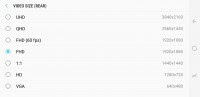
JPG is a natural default, but there is also a convenient option to save a RAW photo, along with every shot you take in Pro mode. There are also toggles for focus tracking and automatic shape correction in the settings menu.
There are a few quick launch and voice control options to explore as well. The Floating Camera button is a new addition to the mix. It is pretty straight-forward, just a second shutter button you can drag around and place freely on the camera interface. It can be a lifesaver when trying to shoot one-handed at tricky angles.
More camera settings


In broad daylight, we honestly had trouble differentiating between the pair. All the shots came out with plenty of detail and great dynamic range. Colors look good as well, although we will admit, this is a subjective point. Furthermore, in typical Samsung fashion, there is plenty of sharpening - also a perceivably pleasant effect for many users.
The colors of Spring


There is very mild softening near the edges, but we're only throwing it out there for the sake of completeness. We've seen way, way worse.
Some more outdoor samples, and a little fine detail and colored textures


Of course, we couldn't skip on our usual set of samples as well. The S8+ managed to capture plenty of fine detail.
Samsung Galaxy S8+ camera samples


HDR on the S8+ is rather subdued. Then again, this has been a pretty typical Samsung trait in recent years. HDR can be set to HDR Off, Auto or On. The Auto setting seems to do a pretty good job at detecting where the effect could come in handy, so no complaints there. However, we will note that most scenes we tried with and without HDR came out looking pretty identical.
HDR OFF • HDR Auto • HDR ON • HDR OFF • HDR Auto • HDR ON


HDR OFF • HDR Auto • HDR ON


Interestingly, the HDR samples in the last set are both softer than the normal photo and both exhibit moire around the white panels on the balconies. We guess this is due imperfections in the HDR image stacking algorithm.
Here are a few more HDR shots for comparison. The last pair did finally manage to push the HDR algorithm a bit harder, making it more apparent.
HDR OFF • HDR ON • HDR OFF • HDR ON • HDR OFF • HDR ON


This is all pretty great, but nothing you can't already expect from a S7 edge or S7, both significantly cheaper than the S8+. However, when the lights go down, the new flagship really starts to shine. These are the scenarios in which the photo stacking we mentioned earlier really starts flexing its muscles.
Galaxy S8+ sample at dusk • 10 minutes later • Galaxy S8+ night sample


Of course, noise suppression is still easily visible, but there is a surprising amount of detail and sharpness shining through. We took the liberty of including some sample shots from the Samsung Galaxy S7 edge as well. These were taken under the exact same conditions, so they should be good for some preliminary comparisons. We will definitely revisit the pair more in depth in a future shootout.
Samsung Galaxy S7 edge sample at dusk • 10 minutes later • Galaxy S7 edge night sample


There is also the photo compare tool for you to check out.
Samsung Galaxy S8+ in our photo compare tool


We have to note that shooting at a shutter speed of 1/10s in our low-light scenario is a bit of a gamble. However, it paid off big time and we're willing to attribute that to cunning awareness of the presence of a tripod.
The S8+ captures detail-rich panoramas. Sharpness is also great. However, there is some visible banding in the samples. To be fair, the particular scene was really difficult to capture in terms of exposure, as we essentially panned from almost directly looking into the sun, through a shadowy park and back to a sunny street. Still, it appears the S8+ is trying to dynamically adjust exposure, which comes off as a rookie mistake.
Panorama samples in both orientations


There is also a motion panorama feature that captures video as you pan. It's a cool concept and works great when viewed directly on the phone. However, all the video data gets saved within the panorama JPG itself. That makes it quite beefy in size and also leads to compatibility problems with many desktop image viewers.
8MP selfie shooter
The main camera might be borrowed from the S7 generation, but the selfie cam isn't. It's a totally new setup - it's now upgraded to 8MP with f/1.7 aperture, variable focus and Auto HDR. The front camera gets a mode selector of its own. We did notice that video collage and the Download button for more modes that were on the Galaxy S7 generation are currently missing from the S8+.
Selfie cam mode selector

As far as resolution goes, the selfie also captures stills in 4:3 natively. Video has seen a bump up to QHD or 1440p. This is one upgrade not even the late Galaxy Note7 had the privilege of spearheading, which makes the S8 and S8+ its official ambassadors - hi-res selfie video.
Our samples turned out pretty great both outdoors and around the office. There is no shortage of detail and no apparent softness, even near the corners. Quality is probably comparable to something along the lines of the Galaxy S4's main camera, so we've really come a long way. Be advised, however, that the selfie does come with a modest level of skin tone correction enabled out of the box. That might need some adjustment to match your personal taste.
Galaxy S8+ selfie samples with default skin tone correction


Speaking of effects, we already mentioned Samsung has provided quite a few to boost your selfie game. Going overboard with any of them is not a really good idea, as made clear by the samples.
Galaxy S8+ selfie no effects • Skin Tone to max • Spotlight to max • Slim Face to max • Large Eyes to max • Shape correction enabled


Spotlight is one of the weirder effects. You get individual control over fictional fill lights aimed at your left or right side. Large Eyes and Shape correction, we found to be quite subtle. Slim Face, on the other hand worked great.
On top of that, there is also Wide selfie. The panning motion it utilizes does require some getting used to, but the end result is exactly as advertised.
Samsung Galaxy S8+ Wide selfie

Selective focus, on the other hand, was hit and miss. Since there is no second selfie camera to work with, the software is pretty much on its own in determining the depth of any given scene. The effect is enjoyable overall, but pixel-peeping quickly reveals lots of imperfections. That's just how it is.
Selective focus effect


Last, but not least, we also gave the selfie a spin in less than ideal lighting conditions. In this case, we set our studio lights to the same 28 lux setting we use for out low-light sample shots. The results are pretty impressive, in our opinion.
Samsung Galaxy S8+ selfie samples at 28 lux


Video
The Galaxy S8+ is capable of capturing footage at up to 4k@30fps, so no real change there, compared to its predecessor. Video gets saved in MPEG-4 AVC, with a bit rate of a little over 48 Mbps and 48 KHz stereo audio. Not bad. A more advanced codec, like HEVC would have shrunk clip file size, but it is still a hassle uploading it to YouTube. The S8+ has no such issue.
There is also support for 1080p capture at 60fps. That one ends up with a bit rate of around 28 Mbps. That's all great on paper. However, before we get to the samples themselves, it is worth noting that both of these recording modes are limited to 10 minute clips at a time. At least on our review unit, that is. This is particularly strange, since the S7 edge has no such cap. We really hope this won't remain a permanent thing.
Since the Multi-Frame Image Processing we kept raving about in the photo section can't really do much when it comes to video capture, there is naturally hardly any real improvement here over the S7 generation to speak of.
To be fair, the S8+ now offers EIS in all resolutions, all the way up to 4K. The S7 edge only had it at 1080p. OIS is still available across both generations, but it's not really meant for video capture to begin with. Good to have around, though.
In any case, the S8+ seems to do better at "de-shaking" footage at 4K than its predecessor. However, in 1080p the system works even better. Here are a couple of samples to illustrate.
Again, this is hardly criticism. Far from it. 2160p videos are packed with detail, you can extract frames and almost have them pass as an 8MP photo. Interestingly enough, despite the S8+'s tendency to oversharpen stills and exaggerate colors a bit, processing in video seems to be a lot more natural and laid back. Again, it all comes down to personal taste, but there is a notable difference in our opinion.
1080p retains what we consider flagship-grade quality, although, there is a noticeable increase in noise over 4K footage. We are happy to report that there is no more focus-hunting in 60fps mode, which used to be a problem on the S7 edge.
But, a sunny day is one thing, what happens when the lights go down? We got a few samples at dusk and at sundown for you to check out. Despite the natural increase in noise levels, the S8+ managed to produce fairly detailed footage at both 4K and 1080p. Buildings stayed sharp even down to individual distinguishable windows. We also like how the S8+ handles light.
For some extra pixel-peeping pleasure, we are also including shorter, uncompressed versions of all the samples:
4K at 30fps (11s, 68MB), 1080p at 60fps (10s, 36MB), 1080p at 30fps (11s, 23MB), 4K at 30fps at dusk (10s, 60MB), 1080p at 30fps at dusk (10s, 22MB), 4K at 30fps low light (11s, 68MB), 1080p at 30fps low light (13s, 28MB).
Samsung Galaxy S8+ in our 4K photo compare tool


Samsung Galaxy S8+ in our 1080p photo compare tool


Bixby all the things
Samsung's new AI assistant is officially here and it's an integral part of the Galaxy S8 and S8+ experience. Judging by marketing highlights, you'll likely be seeing and hearing a lot about Bixby, even if you don't plan on getting either of the flagship pair.

We definitely get all the PR effort Samsung is putting in to get the hype train rolling. By all accounts, Bixby is a massive undertaking and a whole lot more than a simple spin on the company's outdated S Voice platform. Samsung wants Bixby to be a pervasive and persistent presence, like a digital butler that sees everything, hears everything and can help in every aspect of your daily life. If nothing else, the name sure fits the bill.

The Korean giant arguably succeeded on most of these points. You can pretty much call upon Bixby from every interface and if you ever find yourself stuck in an UI that doesn't offer any shorthand link to the AI, there is always the Bixby button. This, in itself, shows the level of commitment Samsung currently has to the platform. The company's vision for the future involves a seamlessly connected home, with all your electronics and appliances playing ball and Bixby near the center of it all.

But even Samsung's optimistic predictions place that reality at least three years into the future. The real question is, what can Bixby do for you today, after you unbox your shiny new Galaxy S8+?
Straight off the bat, we will note that Samsung is aware of the platform's early nature and is actually not pushing it down user's throats. In its current state, it is surprisingly easy to turn Bixby off and ignore it altogether, whether for good, or simply to postpone the jump into Samsung's new AI ambitions.
Actually, users outside of Korea won't be getting Bixby Voice at launch at all, so clearly, there is still some waiting to be done. But, we digress.

The easiest way to perceive Bixby is through its individual parts. First up is Home. In a lot of ways, it's similar to the older Google Now experience - a dedicated interface, with a feed of contextually relevant information. It can either be brought up by tapping the Bixby button three times, or by swiping right from the left edge of the screen. The latter home pane positioning can be toggled off or on, as per your liking.
Bixby Home interface


Bixby Home definitely looks simple on the surface, but there is actually quite a bit of customizability hidden away under the hood. For one, cards can be hidden, pinned to the top or turned off. There is no apparent rearrangement option beyond that, but Samsung does offer a toggle for something it rather descriptively calls "Samsung Interactive and Customized Services for Hello Bixby" that makes the platform and thus the cards location and context aware.
Editing cards • Bixby options


As for the cards, themselves, they actually come courtesy of various apps which are installed on the phone. In a rather forward-looking fashion, Samsung has provided an API to enable displaying content from third-party developers. Even in this early stage, there are already a few notable applications that can talk to Bixby in this fashion, like Spotify, Twitter, Foursquare and Uber.
It is also worth noting that Bixby can put cards on your lockscreen as well. Of course, that all depends on whether you permit it to do so, again on a convenient per-app basis.
Bixby cards come courtesy of your apps


Once you enable the feature, it manifests itself as a separate app. In it, you can input content the old-school way.

However, Reminder also appears on your share list, so you can share a web page, photo, a conversation or even a video file with the app and create a reminder based on that. Once the timing or location conditions for that reminder are met, you can just jump back in your content. Reminder even remembers where you left off your video or song.
Reminder offers time and location based conditions


Sharing content is a big revolution in terms of reminders


Bixby Vision is an interesting take on what has been one of the big goals of AR and computer vision enthusiasts for quite a few years now. If you've ever tried Google Goggles before, the concept here should already be familiar to you - point your camera at an object, recognize it and its properties and get relevant information.
This sounds like a perfectly easy end-goal, but the underlying implications are immensely complex and difficult to tackle. Samsung actually aimed for a fairly advanced implementation. Bixby can potentially recognize objects in one of the following categories: Shopping, Places, Text, Wine, Image and QR code. As you can imagine, it's a hit and miss situation and some categories work better than others.
Pixels are a non-issue


Once Bixby Vision detects something it thinks it can recognize, it gives you suggestions as to what category it thinks it falls under. Bixby then relies on user input to take it the rest of the way. Detection often ends up cropping too much of the item, so you should take the time to adjust the windows for best results.
Text OCR isn't all that great


The image search is fairly straightforward and mainly looks for general shape and color matches, patterns and compositions. Text and QR also work well, as one would expect in 2017. Looking up shopping links and wine listings is a lot tougher and results from our tests were all over the place.
Adjusting the detection area definitely helps


Text in patented fonts seems to be a good idea • So do easily recognizable shapes • No party for us


There are shortcuts to Vision scattered all around the interface. Naturally, you can enable it from the camera or Bixby Home, but there are also options for passing an image from the gallery or the web for analysis.
Finally, every self-respecting AI assistant needs a Voice. However, Samsung appears to be taking its time in giving Bixby one. Our review unit lacks the functionality altogether and so will non-Korean units at launch. At the announcement event, we did hear Bixby talk in a rather robotic and unpolished female voice, but we can't imagine that will stick.

We do hope Bixby Voice learns English soon, since this is the omnipresent part of the assistant Samsung claims will be always at your side, to simplify day-to-day tasks. In the company's own words, Voice will allow you to do practically anything you can using a traditional touch control scheme. The idea is, you can just pick up a conversation and offload some tasks to Bixby whenever that makes sense, while you continue on going about your business using the S8+ uninterrupted.
DeX
Having a full-featured desktop experience courtesy of your mobile device and a dock is far from a new concept. Most people nowadays associate it with Microsoft's ambitious Continuum platform. Still, other implementations do exist. In fact, Samsung fans might just remember that the company already had special docks and dock modes for some of its older handsets.

DeX is intended to take those efforts to a new level. If nothing else, the feature is definitely getting a lot more PR attention and end-user exposure, compared to past implementations. Still, marketing aside, the real question is, once again - What can DeX do for you right now and is it really the desktop replacement frequent travelers have been waiting for?
Sadly, the short answer is probably, no. We are getting there, but we still don't realistically see anybody throwing away their PC. That being said, there is a lot of added polish to DeX.

Starting with the dock itself, we can't help but compare it to the universal smart docking station all the way back from the Galaxy Note 2 era. Design-wise, the improvements are obvious - the swivel bracket mechanism and rounded aesthetic all fall in line with the S8 and S8+ unique appearance.
There have been some hardware improvements as well. Most notably, Samsung has leveraged the new USB Type-C interface on the phone to deliver a DisplayPort link, capable of outputting 4K, through the HDMI 2.0 port on the DeX. In comparison, the older multimedia dock was only limited to 1080p.

However, as previously mentioned, Samsung's DeX UI is only limited to 1080p. You can only take advantage of a 4K feed if you choose to mirror your device screen instead. Which, granted, is still not a bad deal for multimedia consumption.
But even if we are willing to let the slightly disappointing resolution cap slide, there are still other aspects of DeX that are less than fitting for its $150 price tag in our book. For instance, the pair of USB ports are only USB 2.0. We get that they are mostly meant for attaching a keyboard and mouse but using Bluetooth for those connections is a lot more convenient so why not 3.0? This would have allowed a faster data transfer to a thumb or hard drive. (The Type-C port on the DeX is needed to deliver power, so using it for data could only work with a complicated USB hub setup).
Speed limitations aside, we tried hooking up some 2.4 GHz peripherals to the DeX, like one of Logitech's universal dongles and it worked without any issue. Also, while on the topic of I/O, the undeniably convenient Ethernet port on the DeX is limited to 100 Mbps, so not a lot of future proofing there.

Just to round our hardware impressions up, the built-in fan seems like a nice addition to the DeX mix, albeit a slightly troubling one in terms of implications. But, we are happy to report we didn't see the fan moving at all during our time with DeX. Wireless charging would have been a nice bonus, but despite the shape similarity, DeX can only charge the handset the old-fashioned cable way.
As far as the actual DeX software experience goes, there are at least a few impressive aspects about it, but also mixed in fairly evenly with some annoying flaws and limitations.
You can complement DeX with your wallpaper of choice


Jumping in and out of DeX is a really fluent procedure. You simply dock the phone and in a matter of seconds, the desktop is there - no restarting or lengthy load times. DeX also carries over your stack of recent apps most of the time. There is a slight chance that some active apps will get closed when you undock the phone, but that is to be expected. So are the scary-looking screen flashes, accompanying the process and all the resolution and UI readjustments that take place.
Access to notifications and quick toggles


Straight off the bat, we will note that your phone remains perfectly functioning as a communication tool while it's in DeX mode. You have access to your dialer and contacts and can still make and receive calls.

You also get all your notifications, neatly arranged in their own interface in the taskbar. The same goes for your quick toggles. Actionable notifications also work, so for example you can reply to messages. We tried Skype, Facebook Messenger and Hangouts and they all work like a charm. YouTube's actionable notifications also function as expected.

That's just the thing about DeX, it is, more or less, a desktop-style Android launcher that appears to leverage Nougat's freeform windows mode. That is why, you can expect most of your Android apps to work. Of course, there are still some compatibility issues here and there and Samsung has built upon the Android code with some degree of advanced functionality, but for the most part, DeX uses Google's standard interface scaling methods. If an app developer decides to properly implement those, you should have no problem using his or her apps with DeX.
Alto's adventure right after docking and after a dry start in DeX


That being said, some apps will still behave oddly in their current state. Others refuse to scale their interface entirely. For one, we noticed some games that were left open on the phone, required a manual reboot before starting to display normally on DeX. And even then, only titles with built-in support for more traditional input methods, other than touch or tilt, will even be usable in this setup.
But, gaming isn't really the intended purpose for DeX. That would be productivity. And for the most part, Samsung has nailed things in this department. All of the default apps on the S8+ scale and work seamlessly in DeX and Samsung even provides a convenient list of some third-party offers that are tested for a proper desktop experience.
Default apps all scale nicely


And even the interface itself is geared towards delivering a convincing desktop UI, while hiding the underlying Android fabric. On the left, the app drawer is designed to resemble a start menu, the same goes for the task switcher and the list of active applications after that. The taskbar on the right can get a bit busy with notifications, but Samsung has thrown in a desktop-style compact interface in there as well.

Overall, DeX has all the making of a modern desktop UI. If your daily-driver is OSX or Windows 10, with its toast style notifications, DeX will make you feel right at home. The only thing we really miss from the otherwise excellent multi-window experience is any sort of window snapping.
DeX is desktop all the way


It would make a lot of sense as well, since Samsung has already implemented some basic, but invaluable keyboard shortcuts, including Alt+Tab, Ctrl+C, Ctrl+V and Alt+F4, to name a few.
As one final point, we can't fail to mention that Samsung has made a few rather irritating decisions when it comes to office documents work on the Galaxy S8+ and DeX. While Microsoft Word and Excel are part of the phone's default app package and scale wonderfully on to the DeX UI, you can't really use them on a monitor, out of the box.
In order to create a new file, edit or save it, in fact, anything other than open and view, an Office 365 subscription is required. We get that it's likely a licensing issue and Microsoft could, very well, be the one at blame here, not Samsung. However, you can freely create and edit all the documents you want once you undock the S8+. Also, Old Blue is generous enough to provide users with two years of 100GB free OneDrive cloud storage, so why not throw a little office love in there as well?
Microsoft Office works great, but requires a subscription


With all said and done, we do realize the potential in DeX. Samsung has partnered with some big names in the virtualization game, like Citrix, Amazon and VMWare, making some really interesting cloud-based business solutions already accessible. But beyond a few very specific niche markets, DeX is little more than a cool little gadget to play with from time to time - a technology showcase if you will. If that is enough to justify a $150 investment on top of an already extravagantly expensive handset, there is a lot of cool experimenting to be enjoyed. In any other case, you can feel free to "Move along" when it comes to this feature as this is still not the workspace revolution we have been waiting for.
Conclusion
It was a tall task for the Samsung Galaxy S8+ development team - not an enviable position, to say the least. Not only were they looked upon to deliver a meaningful upgrade to the S-series in an increasingly competitive market, but had a Note7-sized gap in the company portfolio to fill. And such a task certainly involved taking quite a few risks.
Getting rid of the home key goes against a generations-old tradition, while the new fingerprint reader position will certainly raise more than a few eyebrows. The unorthodox 18.5:9 aspect ratio is not going to be a YouTuber's favorite either.

Well, you've got to crack a few eggs to make an omelette and the final product looks like the sacrifices were well worth it. The Galaxy S8+ is one gorgeous piece of tech with its Infinity display and no amount of black bars can take that away from it. Plus, it's not like having bezels in their place will do your videos any good.
The camera is barely an upgrade over the Galaxy S7 for your good light or video shooting, but the new image-stacking tech delivers a notable boost in the camera's weakest area - low light photography. And the front camera got such a major update that it might be enough of an incentive on its own for selfie fans to upgrade.
The chipset is the fastest around, while the software is more polished than ever. And while the battery capacity hasn't been increased over the S7 edge, the endurance is improved when it comes to web browsing and video watching.
Samsung Galaxy S8+ key test findings
- The perfectly symmetric body is slick and durable, thanks to front and rear Gorilla Glass 5 and IP68 certification. However, the all-glass body is quite slippery.
- The new 18.5:9 aspect ratio works great for portrait gaming and has its benefits for browsing and multi-tasking. However, the S8+ is quite tall for one handed use and reaching the notification area can be tricky.
- The new on-screen navigation works well and buttons can finally be re-mapped. The home button has nice haptic feedback. However, controls are placed pretty low relative to the overall height of the S8+ and can be hard to reach.
- The fingerprint reader is really awkwardly placed - too high up and right next to the camera.
- The exceptionally bright Infinity display is a chart-topper in terms of sunlight visibility. Colors are even punchier, as testified by the 'Deep Red' OLED branding.
- The new ultra-wide aspect is great for playing games or browsing, although scaling issues might be present with certain unsupported apps. Samsung offers a compatibility scaling mode for convenience.
- Sadly, most video is still not suited for such a wide screen. Viewing 4:3 photos is particularly wasteful of the extra space. Content is moving in the right direction, though.
- The S8+ is is really versatile when it comes to connectivity. Gigabit LTE is a particularly nice treat, although few places have support for such huge bandwidth. Bluetooth audio streaming to two devices simultaneously, although not perfect, is also a neat little trick. We also appreciate the presence of DisplayPort video output over Type-C.
- The Exynos 8895 variant of the S8+ managed to score a really good 88 hours in our endurance test. This falls in line with expectations, considering the S8+ screen has both larger surface area and more pixels, compared to the S7 edge. AOD takes a massive toll on battery life, whereas running at lower-than-native resolution offfers virtually no benefits.
- You can either have iris or facial recognition set for unlocking the device, but oddly not both. Iris is blazing fast, but requires some careful alignment. Facial recognition works pretty well, but does require good lighting.
- Samsung's new 'Light and Line' icons look pretty cool. However, Samsung UX's default light color scheme is still a bit out-there.
- Samsung really improved upon the default Nougat multi-window functionality. We particularly like the new Crop View that lets you select a portion of an app or web page and have it sit and function on its own. Edge panels could potentially be very useful, if set-up properly.
- The S8+'s single bottom-firing loudspeaker only managed an Average score in out loudness test.
- The Exynos 8895 chipset delivers a chart-topping performance in both CPU and GPU synthetic benchmarks. It even outpaces the Kirin 960 in multi-threaded jobs. The Mali-G71 MP20 GPU manages to impress even at the phone's native QHD+ resolution.
- Audio output from the S8+ is perfectly clean and offers above average loudness.
- The Dual Pixel camera offers marginal improvements over the S7 one in daylight stills. However, the new Multi-Frame Image Processing delivers noticeably cleaner and sharper low light photos. Video capture quality is also mostly unchanged over the previous generation, but the S8+ now offers EIS all the way up to 4K.
- The 8MP selfie camera is a major upgrade in terms of image quality and comes with auto-focus. Samsung also included a big collection of filters, stickers and dynamic facial effects to raise your selfie game. Selective focus effect has limited application but does a decent job.
The Galaxy S8+ has plenty of polarizing potential, but that's not necessarily a bad thing - all the best-selling smartphones have their fair share of detractors and, if nothing else, debates do raise awareness. Samsung needs a box-office hit to prove that the Note7 was merely a blip and if early interest is anything to go by, it has scored a homerun with the Galaxy S8+.
But to put things in perspective, let's see what other options you have in the super premium segment right now. The Galaxy S8+ goes for about EUR 850 and while it can go lower with carrier subsidy there are no devices out there that it can really undercut. It never meant to anyway - it wants to win battles on merit rather than budget.
If you are eyeballing the S8+, chances are a bigger screen is what you're after. The Note would normally be your first choice but you'd need to go to the Note5, which is a year and a half old and can't really match the new flagship for camera or performance - even the display quality took a major step forward since. We'd certainly advise against going in that direction.
The LG G6 seems like a more natural alternative, offering another display-dominated front. The LG flagship has a secondary ultra-wide camera to go with that ultra-wide screen and costs a bit less. It comes with last year's Snapdragon 821 chipset though, and lacks the seamless design of the Galaxy S8+ .
LG G6

The Xperia XZ Premium could potentially be the closest match for the S8+ once it finally hits the stores. It has the 4K panel and Snapdragon 835 to offer, but it's more than a month away and for all the flashiness of its mirror finish it's no match for the Samsung in terms of looks. The Motion Eye camera certainly has its limitations, but those 960fps videos are the kind of exclusive feature you'd expect from a flagship.
Sony Xperia XZ Premium

If you fancy a clean android with timely updates the Google's own Pixel XL is what you should be looking at. It can't match the Galaxy S8+ processing prowess, its body looks like something from a previous era and it's some EUR 100 more expensive. Hardly an easy recommendation here, the Google purebread.
Google Pixel XL

A more feasible alternative comes from Huawei and its dual-curved Mate 9 Pro. It comes with last year's definition of slim bezels, but is a hot-looking device with two Leica-branded cameras on the back. It doesn't have the Galaxy S8+ polish in either design or software, but it can be a decent alternative if you can find a good deal on it.
Huawei Mate 9 Pro

Similarly, Samsung's own S7 edge has undergone a couple of price cuts and offers much of the same software experience (although running on last year's hardware) at a far more acceptable price point. It's not going to get the same envious looks from bystanders, it's only the value for money alternative.
Samsung Galaxy S7 edge

But there goes value-for-money when you're tempted by something beautiful, new and exciting. OK, the Samsung Galaxy may be too novel and too ambitious for some, but this time around it's not just the next instalment in the Galaxy S line. The Galaxy S8+ is following and defying tradition. It's called upon to take over from the Edge and get even for the Note. And if it does succeed in both, the competition will be either reaching for the panic button or flipping through their own sketchbooks for the next big thing.

No comments:
Post a Comment